

Download HP USB Recovery Flash Disk Utility – Secure Backup, Free System Restore Tool
Overview
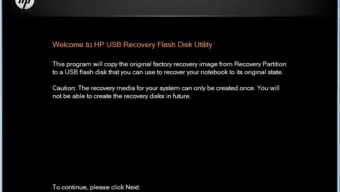
HP USB Recovery Flash Disk Utility is a compact, free backup tool designed specifically for Hewlett‑Packard laptops and desktops. The utility enables users to create a bootable USB flash drive that contains a complete image of the original factory recovery partition. In the event that the internal recovery partition becomes corrupted by malware, a hard‑drive failure, or accidental deletion, the USB recovery disk acts as a reliable Plan B, allowing you to restore the system to its pristine factory state without the need for additional third‑party software.
The program integrates seamlessly with HP System Recovery, extracting the necessary system files, drivers, and pre‑installed applications, then writing them to a removable drive that can be used on any compatible HP device. Because the utility creates a true, sector‑by‑sector copy, the restored system behaves exactly as it did when it first left the factory, preserving warranties, OEM software licenses, and personalized BIOS settings. Whether you are a home user looking to protect a single notebook or an IT administrator responsible for multiple workstations, HP USB Recovery Flash Disk Utility offers a straightforward, secure way to safeguard critical system data.
Its lightweight design (< 5 MB) means it can be installed and run on almost any Windows environment, and the step‑by‑step wizard guides users of all technical levels through the creation of a bootable recovery disk. By leveraging a simple USB stick, you eliminate the risk of a damaged internal partition and ensure that you always have a trustworthy recovery option at hand.
Key Features
- Free, no‑cost utility officially provided by HP.
- Creates a bootable USB flash drive that mirrors the original factory recovery partition.
- Supports all recent HP laptop and desktop models with a built‑in recovery partition.
- Simple wizard‑based interface – no command‑line knowledge required.
- Automatic detection of the correct recovery image for your specific HP model.
- Compatible with USB 2.0 and USB 3.0 sticks (minimum 8 GB recommended).
- Works on Windows 7, 8, 8.1, 10, and 11 (both 32‑bit and 64‑bit).
- Secure copy process that verifies the integrity of the recovery image before writing.
- Option to update the recovery image if a newer firmware or driver package is released.
- Low system footprint – runs alongside other applications without slowing down the PC.
These features combine to make HP USB Recovery Flash Disk Utility a must‑have tool for anyone who relies on HP hardware for daily productivity. The utility’s ability to generate a portable, fully functional recovery environment means that even if the internal hard drive is replaced or the recovery partition is rendered unusable, you can still bring the machine back to life with a single boot from the USB stick. The automatic detection of the correct recovery image removes the guesswork that often accompanies manual imaging solutions, while the verification step ensures that the data written to the flash drive is both complete and uncorrupted. Moreover, the support for both USB 2.0 and USB 3.0 devices guarantees fast transfer speeds, especially on newer machines equipped with USB 3.1 or higher ports. Because the tool is free and officially signed by HP, you avoid the security risks associated with third‑party imaging software that may bundle unwanted adware or lack proper digital signatures.
Installation, Usage & Compatibility
Installing HP USB Recovery Flash Disk Utility is a breeze. Begin by downloading the installer from the official HP support website. The file is a small executable (<5 MB) named HPUSBRecoverySetup.exe. Once downloaded, double‑click the installer and follow the on‑screen prompts. The wizard asks you to accept the license agreement, choose an installation folder (the default location works for most users), and confirm that you have a USB flash drive ready for the recovery image.
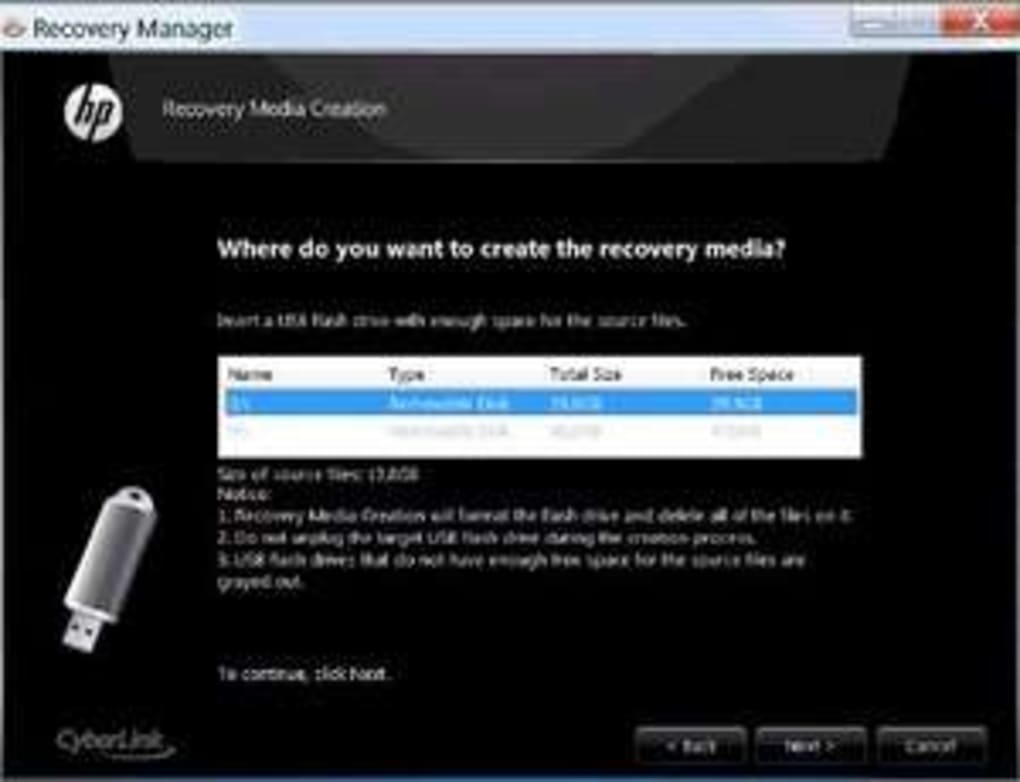
After installation, launch the application from the Start menu. The first screen automatically scans your system for an existing HP recovery partition. If a partition is detected, the utility displays the model number, Windows version, and the size of the recovery image. You will then be prompted to insert a USB flash drive. The program checks the drive’s capacity and format; it must be formatted as NTFS or FAT32, and at least 8 GB of free space is recommended for most modern HP models.
Once the USB stick is recognized, click Create Recovery Disk. The utility copies the recovery files, verifies each block, and writes a bootable master boot record (MBR) to the drive. The entire process typically takes 10–20 minutes depending on the speed of the USB port and the size of the recovery image. When the operation completes, you’ll see a confirmation message and a prompt to safely eject the flash drive.
To use the recovery disk, insert the USB stick into the HP computer you wish to restore, power on the machine, and immediately press the appropriate key (usually Esc or F9) to access the boot menu. Select the USB device as the boot source, and the HP Recovery environment will launch. From there, you can choose to restore the system to factory settings, keep personal files, or perform a custom recovery if you have additional images stored on the same drive.
Supported Operating Systems: Windows 7, Windows 8, Windows 8.1, Windows 10, Windows 11 (both 32‑bit and 64‑bit editions). The utility does not run natively on macOS, Linux, Android, or iOS, but the USB recovery disk it creates can be used on any HP hardware that supports booting from USB, regardless of the underlying OS that was originally installed.
System requirements are modest: a minimum of 1 GB RAM, 500 MB of free disk space for the installer, and a USB port (USB 2.0 or newer). Because the tool works directly with the HP recovery partition, it is essential that the device you are rescuing is an HP‑branded machine; the utility will not generate recovery media for non‑HP computers.
Pros & Cons
Pros
- Completely free and officially supported by HP.
- Creates a genuine, bootable replica of the factory recovery partition.
- Simple wizard interface – suitable for users with no technical background.
- Fast creation time on USB 3.0 drives.
- Verification step ensures data integrity.
- No additional third‑party software required.
- Works on all recent Windows versions.
- Helps IT departments streamline disaster‑recovery procedures.
Cons
- Limited to HP devices – cannot be used for other brands.
- Requires a functional Windows environment to run the utility.
- Does not support creation of custom recovery images (only factory defaults).
- USB flash drive must be at least 8 GB, which may be larger than some older sticks.
- No built‑in option to back up user data separately.
Overall, HP USB Recovery Flash Disk Utility delivers on its promise of providing a reliable, free, and easy‑to‑use solution for creating portable recovery media. While its scope is intentionally narrow—focusing exclusively on HP hardware—it excels within that niche, offering a trustworthy fallback when the built‑in recovery partition fails. The straightforward interface, combined with automatic detection of the correct recovery image, makes it an excellent choice for both home users and enterprise IT staff looking to standardize recovery procedures across multiple HP workstations.
FAQ
Do I need an internet connection to create the recovery USB?
No. The utility works entirely offline because it copies the recovery image stored locally on the HP recovery partition. An internet connection is only required if you later decide to download updated drivers or firmware from the HP support site.
Can I use the same USB drive to create recovery media for multiple HP models?
Each USB stick can hold only one recovery image at a time because the utility writes a dedicated boot record and partition layout for the specific model. To support multiple models, you would need separate USB drives or re‑format the stick each time you create a new image.
What happens to my personal files when I restore from the USB recovery disk?
Restoring from the USB recovery disk returns the system to its original factory state, which erases all user data, installed applications, and custom settings. It is strongly recommended to back up personal files to an external drive or cloud service before performing a full restore.
Is the recovery USB bootable on non‑HP computers?
The USB drive contains HP‑specific recovery files and BIOS settings, so it will only boot correctly on HP hardware that matches the original model. On a non‑HP computer, the USB will not be recognized as a valid recovery source.
How often should I recreate the recovery USB?
It is advisable to recreate the recovery USB after major Windows updates, BIOS firmware upgrades, or when new drivers are released for your HP model. Doing so ensures that the recovery media contains the latest system files and reduces the risk of incompatibility during a restore.
Conclusion & Call to Action
HP USB Recovery Flash Disk Utility stands out as a free, secure, and user‑friendly solution for safeguarding the original factory state of your HP laptop or desktop. By turning a simple USB stick into a portable recovery vault, the tool eliminates the anxiety of a corrupted recovery partition and gives you confidence that you can always bring your system back to life—without expensive third‑party software or complex imaging procedures. Whether you are a student protecting a single notebook, a home user wanting peace of mind, or an IT professional standardizing recovery across an entire fleet of HP workstations, this utility delivers exactly what it promises: a reliable, hassle‑free backup of your OEM recovery image.
Ready to protect your HP device? Download HP USB Recovery Flash Disk Utility now, follow the quick installation steps, and create your bootable USB recovery disk today. Secure your system, avoid costly repairs, and enjoy the freedom of knowing that a single USB stick can restore your computer to its original, factory‑fresh condition whenever you need it.







